

Visitors ask the same questions again and again. Where do you ship? Can I cancel anytime? Does it work with my theme? An FAQ section in WordPress answers them before they reach your inbox, and it takes a few minutes to build in the block editor.
This guide shows you how to build a collapsible FAQ without code, what FAQ schema markup does now that Google has changed how it treats it, and how to write answers people actually read.
Why an FAQ Section Is Still Worth Your Time
A good FAQ was never really about search tricks. It’s about removing doubt at the moment someone is deciding whether to buy, book, or sign up.
It helps visitors decide faster
People scan. When a buyer has a doubt, they want the answer in five seconds, not buried in paragraph nine. A collapsible list of questions lets them jump straight to the one that matters and ignore the rest.
That means fewer support emails, fewer abandoned carts, and a page that feels considerate rather than crowded.
It supports conversions
Most hesitation comes down to a handful of worries: price, refunds, setup time, compatibility. Answering those right next to your call to action keeps visitors on the page instead of sending them off to search for answers elsewhere.
It makes your content clearer for everyone
Plain questions with direct answers are easy to read, easy to quote, and easy to link to. That clarity helps human visitors first, and it also gives any system reading your page well-structured text to work with.
What FAQ Schema Does Now
FAQ schema is structured data, written in a format called FAQPage (usually as JSON-LD), that labels which text on a page is a question and which is its answer.
Google no longer shows FAQ rich results
For years, FAQ markup could make answers appear as expandable dropdowns directly in Google results. That’s over. Google’s Search Central updates log states that the FAQ rich result feature no longer appears in Google Search starting May 7, 2026, and Google has since removed its FAQ rich result documentation.
So if you’ve read older guides promising bigger search listings from FAQ schema, ignore that advice. Adding the markup won’t bring those dropdowns back.
What FAQPage markup may still be good for
FAQPage is still a valid Schema.org type. It gives your questions and answers a machine-readable structure that other search engines, AI assistants, and tools could use to understand your content.
Be realistic about it, though. No one publicly guarantees that a given search engine or assistant will use your markup, or how. Treat FAQ schema as a low-effort extra that keeps your content well labeled, not as a traffic strategy.
The on-page FAQ is what does the real work. Build that well first.
What You Need
- WordPress with the block editor. If you're new to it, our Gutenberg block editor guide covers the basics.
- Easy Accordion Block (free) to build the collapsible FAQ.
- Easy Accordion Block Pro (optional) if you want the FAQs block that outputs FAQPage markup, plus search and load more for long lists.
Easy Accordion Block is built with Gutenberg’s own components, so the controls feel like the rest of the editor. Its assets load only on pages that actually contain an accordion.
How to Add an FAQ Section in WordPress (Free)
Start with the free plugin. This gives you a working, accessible FAQ block in a few minutes.
- Install the plugin. In your dashboard, go to Plugins > Add New, search for "Easy Accordion Block", then install and activate it.
- Open your page. Edit the page or post where the FAQ should live.
- Insert the block. Click the + inserter, search for "Accordion", and insert the block.
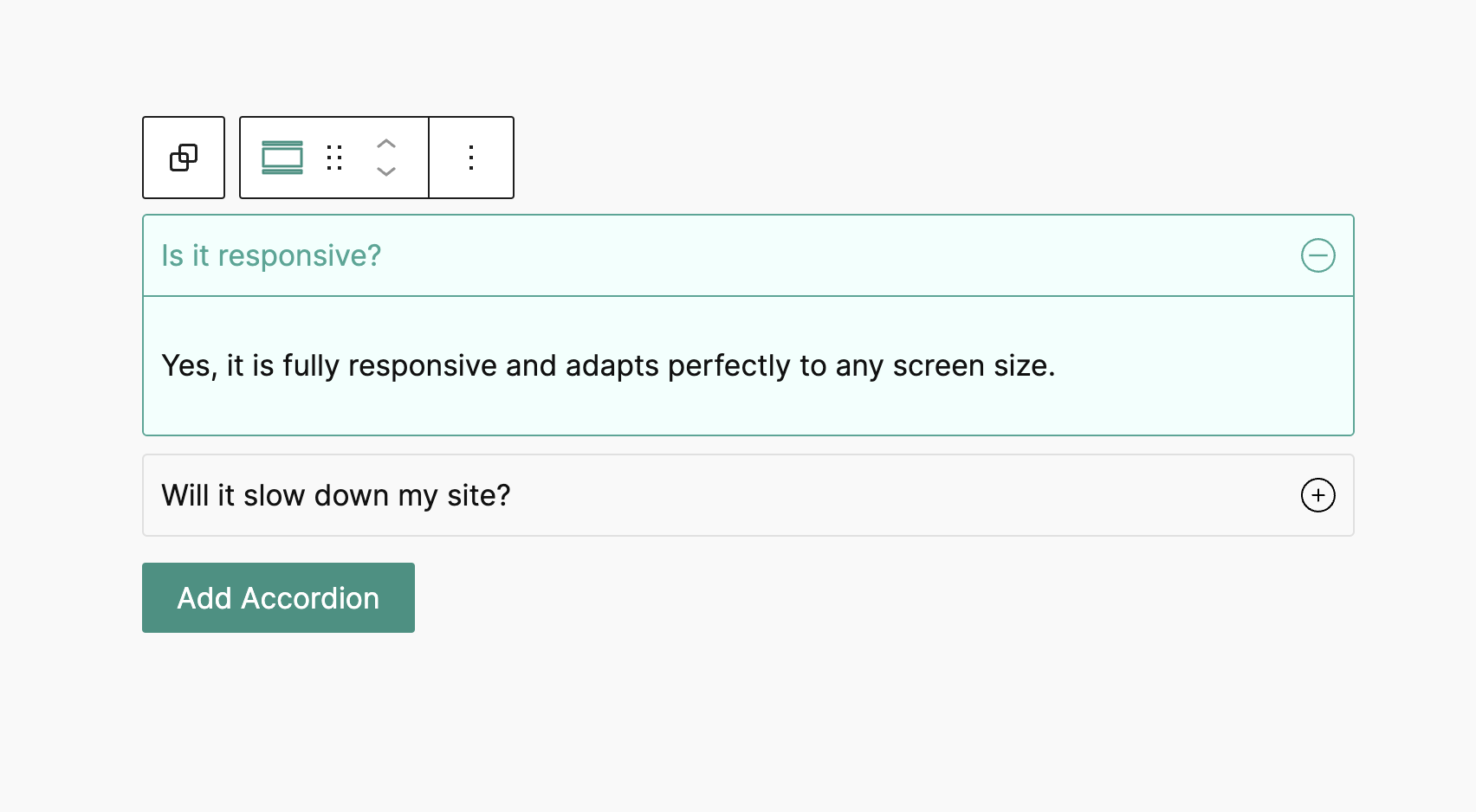
- Add one item per question. Type the question in the item heading. Put the answer inside the panel.
- Add richer answers if needed. Each panel is a normal block canvas, so you can drop in lists, images, buttons, or even video.
- Choose how items open. In the block settings sidebar, decide whether only one item stays open or several can be expanded at once. You can also allow every item to be closed.
- Open the most important question by default. Turn on the "Make it active on load" option for an item and it renders already expanded.
- Style it. Adjust typography, borders, padding, and icons. Spacing and sizing have separate desktop, tablet, and mobile values.
- Preview and publish. Check the page on desktop and mobile, then publish.
Want a head start? The plugin includes premade patterns you can insert and edit. If you like working from patterns, our guide to block patterns in Gutenberg explains how they work.
Accessibility comes built in
A good accordion FAQ should work for everyone, not only mouse users. Easy Accordion Block uses proper ARIA attributes such as aria-expanded and aria-controls, and supports Enter, Space, Up, Down, Home, and End on the keyboard.
It also respects the visitor’s reduced-motion preference. If JavaScript is unavailable, panel content stays readable, and every panel expands automatically when the page is printed.
Optional: Add FAQPage Markup with Pro
The free plugin focuses on building and styling the accordion. FAQPage JSON-LD comes with Easy Accordion Block Pro through its dedicated FAQs block.
- Get Pro. Plans start from $29 per year on the Easy Accordion Block pricing page. Install and activate it alongside the free plugin.
- Insert the FAQs block. Open the + inserter, search for "FAQs", and add the block to your page.
- Add your questions and answers. Write each question as an item and its answer in the panel, just like the free accordion.
- Publish the page. The FAQs block outputs FAQPage JSON-LD for the questions it contains.
- Validate the markup (optional). Paste your page URL into the Schema.org validator to confirm the FAQPage data is detected without errors.
For many site owners, Pro’s other FAQ features are the bigger draw. Instant search filters questions as the visitor types, Load more reveals items in batches, and Open all / close all buttons expand or collapse a whole set in one click. On a help page with dozens of questions, those matter more than markup.
Best Practices for Writing FAQ Answers
The block gives you structure. Your words do the heavy lifting.
- Use real questions. Pull them from support tickets, sales calls, and comments. Write them the way customers ask them.
- Answer in the first sentence. Lead with "Yes", "No", or the direct answer, then add detail.
- Keep answers short. Two to four sentences is plenty for most questions. Link to a full guide if it needs more.
- Keep markup and page in sync. If you use FAQ schema, it should describe the questions people can actually see on the page.
- Skip the sales pitch. FAQs build trust when they're honest. Avoid stuffing every answer with promotions.
- Group by topic. On long pages, use separate accordions for billing, shipping, and setup so people find answers faster.
- Place FAQs near decisions. Put a short FAQ under pricing tables, signup forms, and product details, where doubts actually come up.
- Review them regularly. Prices, policies, and features change. Outdated answers do more harm than no answers.
Frequently Asked Questions
Does Google still show FAQ rich results?
No. According to Google’s Search Central updates log, the FAQ rich result feature no longer appears in Google Search starting May 7, 2026, and its documentation has been removed.
Is FAQ schema still worth adding?
It’s optional. FAQPage is still a valid Schema.org type that gives your Q&A a machine-readable structure other search engines and AI tools could use, but nobody guarantees they will. The visible FAQ matters more.
Does the free Easy Accordion Block add FAQ schema?
No. The free plugin builds and styles the accordion. FAQPage JSON-LD is included in Easy Accordion Block Pro through its dedicated FAQs block.
How many questions should an FAQ section have?
Include as many as your visitors genuinely ask, usually five to ten for a product or service page. The plugin has no item limit, but a focused list is easier to scan.
Build Your FAQ Section Today
An FAQ section in WordPress saves your visitors time, answers objections before they cost you a sale, and cuts down your support work. Google no longer shows FAQ rich results, so build the section for people first and treat FAQ schema as an optional extra.
Download Easy Accordion Block from WordPress.org and build your first FAQ in minutes. When you want FAQ search, load more, and FAQPage markup, grab Easy Accordion Block Pro. You can also browse our other Gutenberg plugins.


Leave a Reply
You must be logged in to post a comment.