

Your pricing page is where visitors decide whether to buy. If plans are hard to compare, or the table breaks on a phone, people leave. A clean pricing table in Gutenberg makes the choice obvious and points visitors to the plan you want them to pick.
This guide explains what makes a pricing table convert, then walks you through building one with the free Tabilo Table Builder Block. You’ll highlight a recommended plan, make it work on mobile, and sharpen the copy, all without code.
Anatomy of a High-Converting Pricing Table
Before you open the editor, know what each part of the table is for. Every element should help a visitor answer one question: “Which plan is right for me?”
- Plan names. Short labels that tell visitors who each plan is for.
- Prices. Large, easy to find, with the billing period right next to them.
- A one-line description. One sentence describing the ideal customer for that plan.
- Feature rows. The differences between plans, in the same order for every plan.
- A recommended plan. One column that stands out visually, usually the one most customers choose.
- Call-to-action buttons. A clear button for every plan, with specific wording.
Three or four plans is a comfortable range. More than that, and visitors start to feel overwhelmed instead of informed.
Why Use Tabilo for Pricing Plans in WordPress?
Tabilo is a native table builder block for the WordPress block editor. Its biggest strength for pricing tables: you can put any Gutenberg block inside a table cell.
That means real buttons, headings, lists, icons, and star ratings, not just plain text. If you can build it with blocks, you can put it in a Tabilo table.
Features that matter most for a WordPress pricing table block:
- 19 ready-made pricing table patterns among more than 40 table patterns overall
- Header and footer sections with independent styling
- Per-column colors for header and footer columns, handy for highlighting a plan
- Block styles: Default, Striped, and Separated
- Responsive modes: horizontal scroll with an optional scroll hint, or Stacked Card
- Bonus blocks: Star Rating and an SVG Icon block with a built-in library
- Lightweight output: no jQuery and clean, semantic HTML
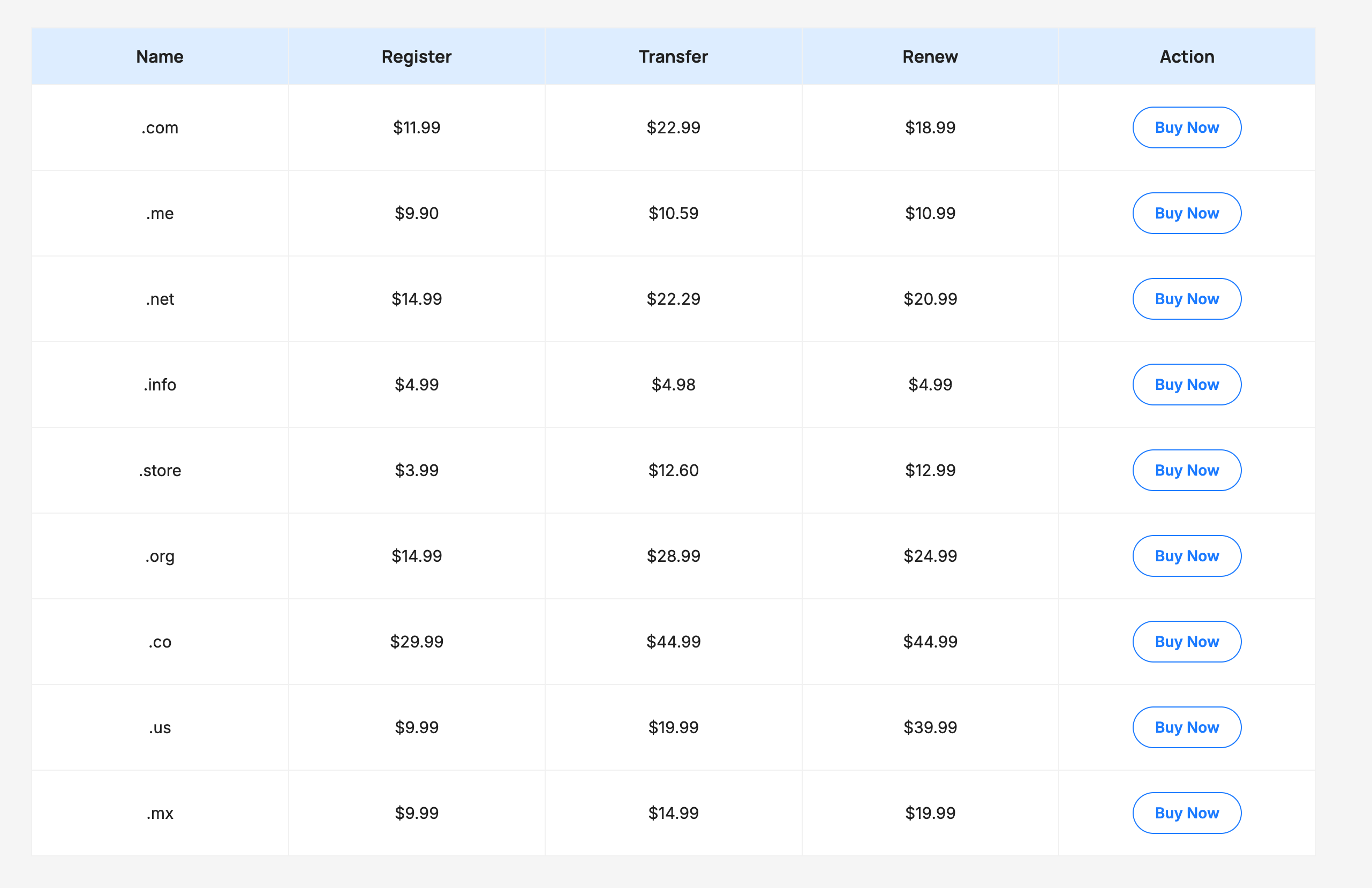
How to Build a Pricing Table in Gutenberg with Tabilo
Step 1: Install Tabilo
- Go to Plugins > Add New in your dashboard.
- Search for "Tabilo" and install Tabilo – Table Builder Block.
- Click Activate.
Step 2: Start from a pricing pattern
- Open the page where your pricing table should go.
- Click the + inserter, search for "Table Builder", and insert the block. You'll find it in the dedicated Tabilo category.
- On the block's start screen, click Choose Pattern.
- Browse the pricing designs and insert the one closest to what you want.
Every pattern becomes ordinary block markup once inserted, so you can change the copy, restyle it, and add or remove rows freely.
Prefer building from scratch? Click Start blank instead, set your number of columns and rows, and switch on the header and footer. If your plan data already lives in a spreadsheet, the start screen also offers Import Data for CSV and Excel files.
Step 3: Add your plans and prices
- Header row: put each plan name and price in the header, one plan per column.
- Body rows: list one feature per row. Use the same order across all columns so visitors can scan across.
- Use icons for yes/no. Insert the Icon block in a cell for checkmarks and crosses instead of typing "Yes" and "No".
- Footer row: add a Buttons block in each footer cell for your calls to action.
Step 4: Highlight the recommended plan
- Select the header cell of the plan you want to feature.
- Give that column its own background and text color using Tabilo's per-column color controls in the block settings sidebar.
- Do the same for its footer column so the plan stands out from top to bottom.
- Add a short label such as "Most popular" in that header cell, or make its button a stronger color than the others.
Keep the highlight to one plan. If everything stands out, nothing does, and a pricing table in Gutenberg is no exception.
Step 5: Style the table
Choose a block style (Default, Striped, or Separated) as a starting point. Then fine-tune colors, borders, border radius, padding, spacing, and font sizes in the block settings sidebar. Use your theme’s colors so the table matches the rest of the site.
Step 6: Set up the mobile layout
Wide tables are the classic mobile problem. Tabilo gives you two responsive options:
- Horizontal Scroll keeps the table intact and lets visitors swipe sideways. You can show an on-screen scroll hint so they know there's more.
- Stacked Card turns each row into a labelled card below 768px. Every cell is labelled with its column header.
Preview on a phone and pick the layout that reads best for your content. For a broader view of designing for small screens, Google’s Learn Responsive Design course on web.dev is a great resource.
Step 7: Publish and test
Click every button to make sure it goes to the right checkout or signup page. Then check the page on desktop, tablet, and mobile before you share it.
Copywriting Tips for Plan Names and CTAs
Design gets attention. Words close the sale. The copy is what turns a good-looking pricing table in Gutenberg into one that converts.
Name plans after the customer
“Freelancer”, “Agency”, and “Enterprise” tell visitors where they belong. “Silver”, “Gold”, and “Platinum” make them guess.
Lead with the differences
Don’t repeat ten identical features in every column. Put the features that change between plans at the top, where people look first.
Write specific buttons
“Start free trial”, “Get the Agency plan”, or “Talk to sales” beat a generic “Submit” or “Click here”. Tell visitors exactly what happens when they click.
Answer objections nearby
Place a short FAQ right below the table to cover refunds, renewals, and upgrades. Our guide on adding an FAQ section in WordPress shows how. If you offer monthly and yearly billing, you could also place two tables inside tabs in WordPress.
Show the value, not just the price
Next to a price, add a short line that frames it, such as “Everything a solo freelancer needs” or “Best for teams of five or more”. Visitors compare value, not numbers alone.
Pricing Table Best Practices
- Keep prices consistent. Show the same billing period across plans, or label each clearly.
- Use social proof carefully. A star rating or short testimonial near the table can reassure buyers. Tabilo's Star Rating block fits inside a cell.
- Use a sticky header for long tables. If your feature list is long, Tabilo's sticky header keeps plan names visible while visitors scroll.
- Don’t hide fees. Setup costs or limits belong in the table, not in fine print elsewhere.
- Revisit your table regularly. Update prices and features whenever your offer changes.
Frequently Asked Questions
Can I add buttons and icons inside table cells?
Yes. Tabilo lets you insert any Gutenberg block inside a cell, including buttons, images, lists, icons, and star ratings.
How do I highlight a recommended plan?
Give that plan’s header and footer columns their own text and background color with Tabilo’s per-column color controls. Adding a “Most popular” label and a stronger button color helps too.
Is the pricing table responsive on mobile?
Yes. Choose Horizontal Scroll to keep the table intact with an optional scroll hint, or Stacked Card to turn each row into a labelled card below 768px.
Do I need to know code to use Tabilo?
No. You build and style everything visually in the block editor. No HTML, CSS, or shortcodes are required.
Build Your Pricing Table Today
A great pricing table in Gutenberg is clear, honest, and easy to scan on any screen. Start from a ready-made pattern, highlight one recommended plan, write specific calls to action, and test the mobile layout before you publish.
Download Tabilo – Table Builder Block free from WordPress.org and build your first pricing table in minutes. Want to see what else we’ve built for the block editor? Browse our Gutenberg products.




Leave a Reply
You must be logged in to post a comment.